OMOneMouse
● Android, Windows & Apple Silicon Mac

One Windows mouse for
phone, tablet, and Mac.

Connect Android and another Windows PC like screens side by side. Apple Silicon Macs running macOS 13+ are supported too.

Start onWindows 10/11
Android Available Another Windows PC Available macOS 13+ Available
1Move your mouse to send the cursor across 2Drag a device's name tag to move it around 3Drag a file to send it to another device
My PC
Galaxy Tab
Phone
Other PC
Mac
photo.jpg
Cursor now on → My PC
The cursor crosses to whichever device it touches · it never disappears off-screen

The demo above is the real device arrangement feature — you arrange devices and pass the mouse the same way in the app.

Great for moments like these

What you do at your Windows PC, now on your phone, other PCs, and Mac.

No networking know-how required. See it through everyday tasks and it clicks right away.

Control your phone like a second screen

Push the mouse past the edge of your PC monitor and it crosses to Android, carrying clicks, scrolls, and drags right along.

Type long messages with your PC keyboard

Search terms, messenger replies, any app text field — whenever you would type on your phone, use your PC keyboard instead.

Send files and the clipboard instantly

Grab a file and drag it to the screen edge to send it straight to the device you chose, and text and clipboard stay in sync on both sides.

Bring in other Windows PCs too

Place another Windows PC in your arrangement and you can pass the mouse to control it and swap files back and forth.

Connect an Apple Silicon Mac

Move the cursor to your Mac and continue with keyboard input, files, and clipboard transfer.

It connects over Bluetooth too

Wi-Fi for everyday use, and when there is no router or internet, connect directly to Android or another Windows PC. Mac currently connects over the local network.

How to connect

Android takes four quick steps.

These steps are for Android. For Mac, install the public Apple Silicon build and follow the Mac connection guide.

01

Open the PC app

Launch OneMouse on Windows and check the QR code or 6-digit code on screen.

02

Turn on the Android permission

Turn on the Accessibility Service once so Android can receive your PC mouse and keyboard input.

03

Connect by QR or code

Find the PC on the same Wi-Fi and confirm your device by scanning the QR code or entering the 6-digit code.

04

Arrange and cross over

Place your phone along a screen edge, push the mouse that way, and you are done.

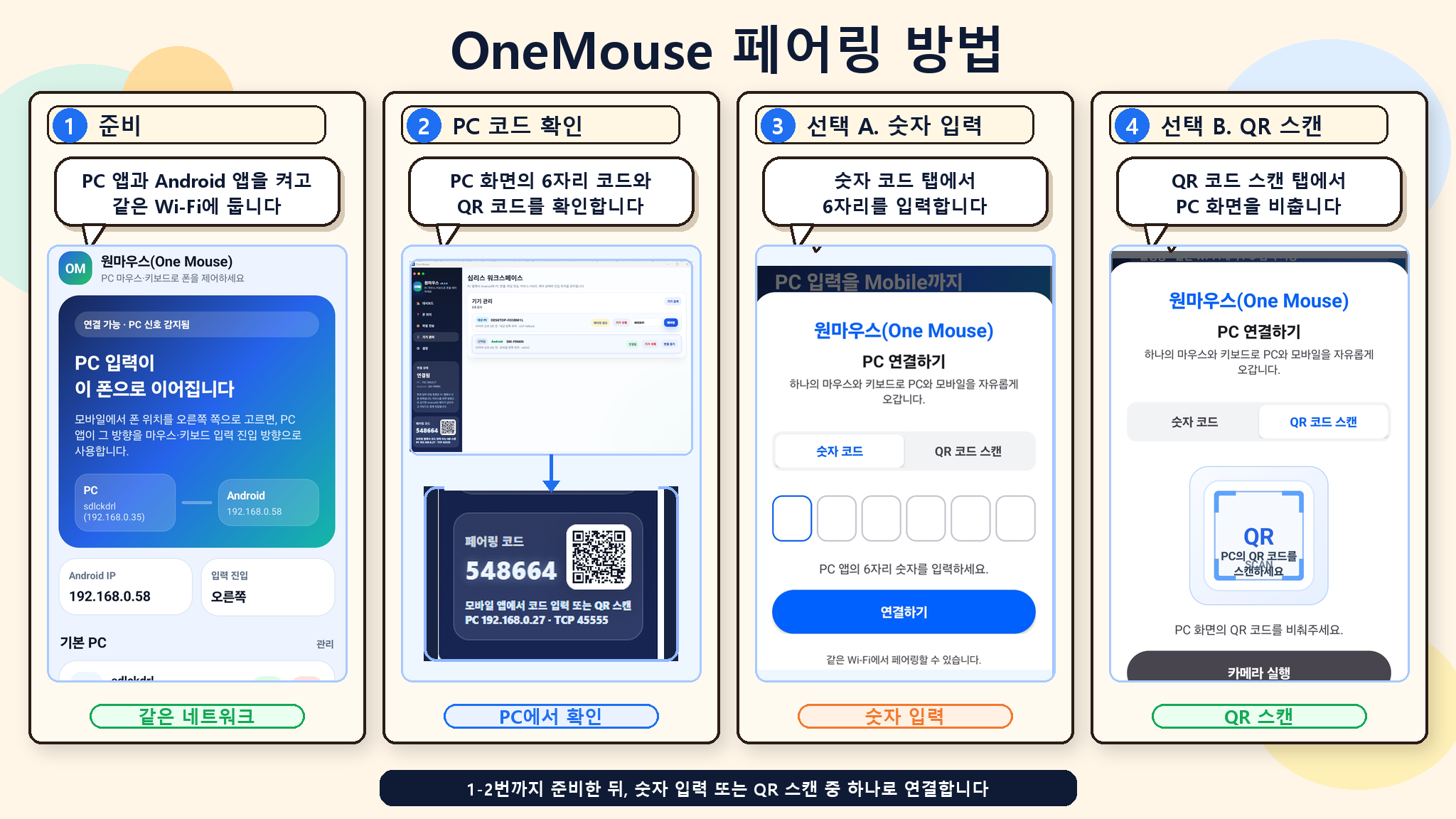
See the real pairing screensGet ready → Check the PC code → Enter the numbers → Scan the QR
OneMouse pairing steps: get ready, check the PC code, enter the numbers, scan the QR
See the full guide

Use it with peace of mind

Between your own devices, inside your own network.

OneMouse works only between the devices you have paired. It asks for permissions only when you actually use a feature.

No server in betweenInput, files, and the clipboard travel between your PC and devices on the same network.
Permissions only when neededAndroid uses Accessibility. A Mac receiving input from Windows uses Accessibility; Local Network appears on macOS 15+, while macOS 13/14 may not show that permission.
Nothing collected or storedWe do not use Accessibility data for ads or screen collection, and we never store your files on a server.
Read more on Technical & Security

Download

Install OneMouse on Windows and each device you want to connect.

Connections are started and managed from Windows 10/11. Android is available from its stores, and a public Apple Silicon build is available for macOS 13+.

Frequently asked questions

Things you might wonder before connecting.

Do I need rooting or developer settings?
No. You just turn on the Accessibility Service once on Android. No USB connection or ADB required.
Can I use it without being on the same Wi-Fi?
Yes for Android and another Windows PC over Bluetooth. Mac currently connects over the local network.
Where do I start a Mac connection?
Start and manage the connection from OneMouse on Windows 10/11. Select the Mac in Windows Devices and enter the 6-digit code shown on the Mac.
My connection keeps dropping.
Usually the cause is battery optimization or a firewall or guest-Wi-Fi client isolation. Follow the troubleshooting order in Help to narrow it down step by step.
See all of Help