Control your phone like a second screen
Push the mouse past the edge of your PC monitor and it crosses to Android, carrying clicks, scrolls, and drags right along.
No video needed — try it yourself. Glide the cursor between devices, rearrange them, and drag a file to another device to send it.
The demo above is the real device arrangement feature — you arrange devices and pass the mouse the same way in the app.
Great for moments like these
No networking know-how required. See it through everyday tasks and it clicks right away.
Push the mouse past the edge of your PC monitor and it crosses to Android, carrying clicks, scrolls, and drags right along.
Search terms, messenger replies, any app text field — whenever you would type on your phone, use your PC keyboard instead.
Grab a file and drag it to the screen edge to send it straight to the device you chose, and text and clipboard stay in sync on both sides.
Place a sub PC in your arrangement and you can pass the mouse to control it and swap files back and forth.
Wi-Fi for everyday use, and when there is no Wi-Fi router or internet, connect directly to your phone or another PC over Bluetooth.
How to connect
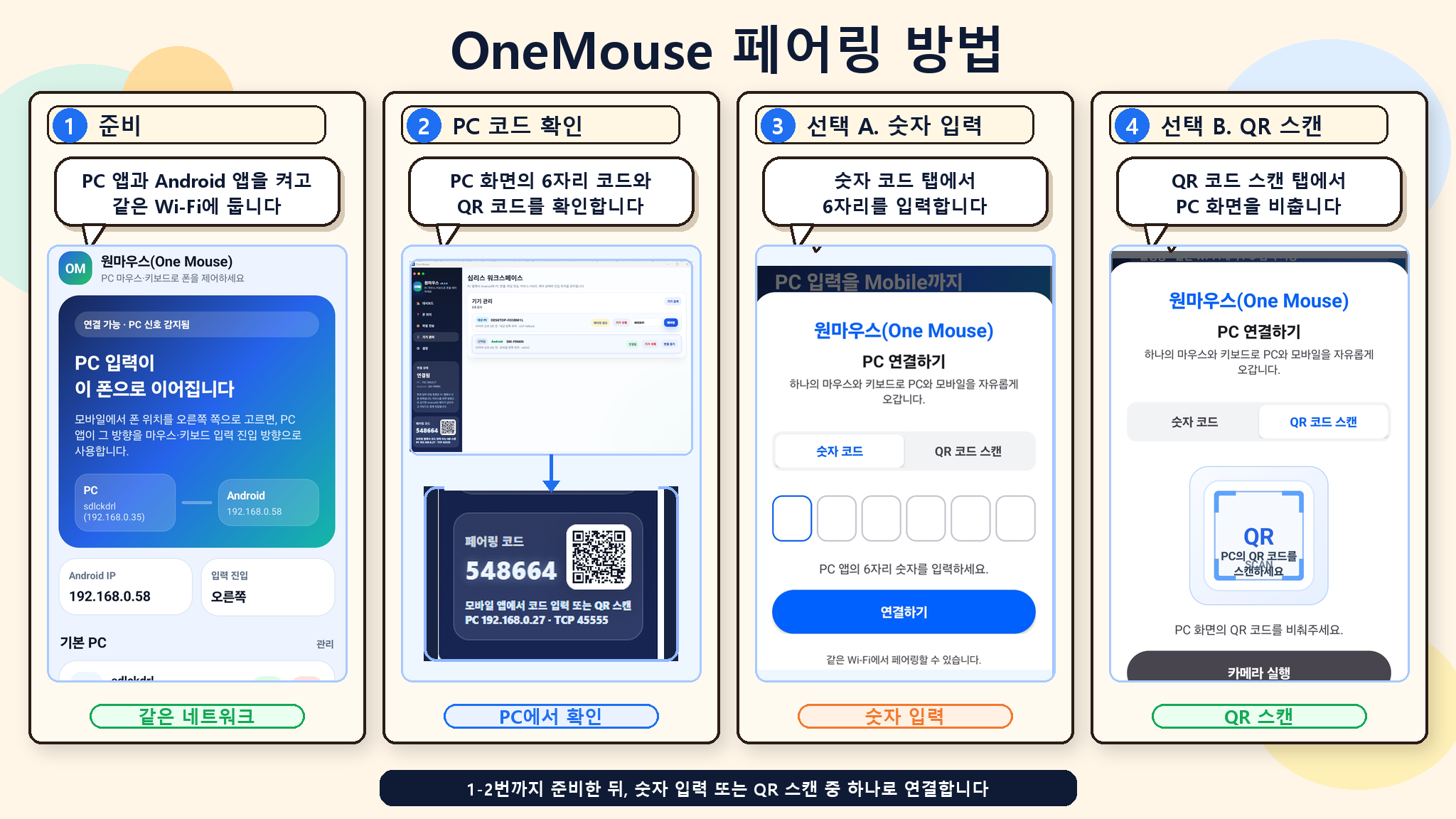
The app handles the tricky setup for you. Just follow the on-screen steps. The only thing you turn on is the Accessibility Service.
Launch OneMouse on Windows and check the QR code or 6-digit code on screen.
Turn on the Accessibility Service once so Android can receive your PC mouse and keyboard input.
Find the PC on the same Wi-Fi and confirm your device by scanning the QR code or entering the 6-digit code.
Place your phone or other PC along a screen edge, push the mouse that way, and you are done.
Use it with peace of mind
OneMouse works only between the devices you have paired. It asks for permissions only when you actually use a feature.
Download
On PC, Windows 10/11 comes first. On Android, turn on the Accessibility Service, then pair with your PC.
Checking for the latest Setup file.
Download for WindowsInstalls on most Android devices.
View on Google PlayOpen the store on Samsung Galaxy devices to install.
View on Galaxy StoreFrequently asked questions